1Accessing the webmail
Go to webmail.dinao.com and sign in with the email address and password of your mailbox.
- A compatible device: a computer with Windows Hello or Touch ID, a smartphone, or a USB/Bluetooth security key.
- Your current password.
2Step by step
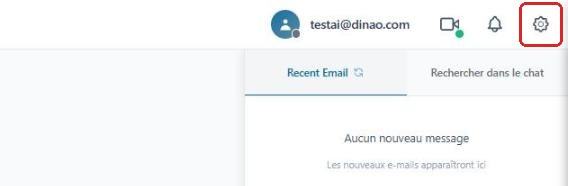
Open the settings
Once logged in, click the gearengrenage icon at the top right.
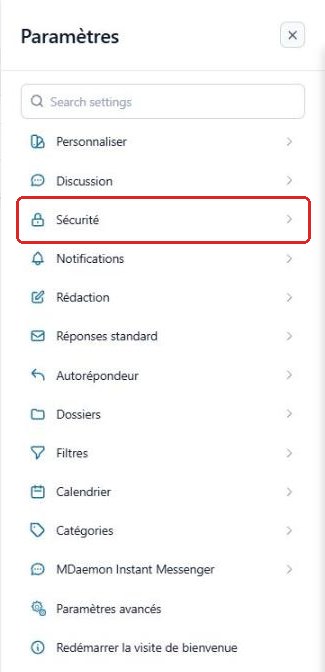
Open the “Security” section
In the SettingsParamètres menu, select “Security”Sécurité.
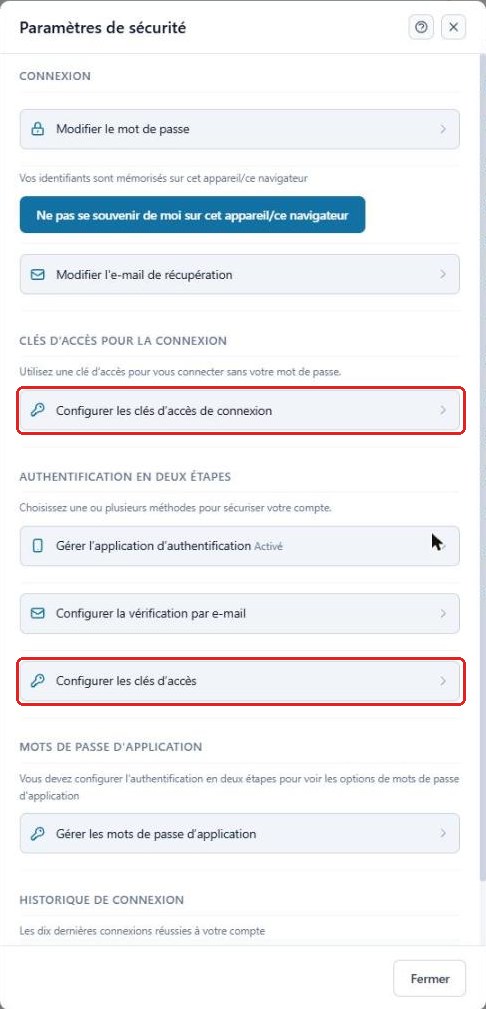
Choose how the key will be used
Two entries are available:
- Set up sign-in passkeysConfigurer les clés d'accès de connexion: to sign in without entering your password;
- Set up passkeysConfigurer les clés d'accès (Two-Step Authentication section): as a second factor after the password.
A given device can only be registered for one of the two uses.
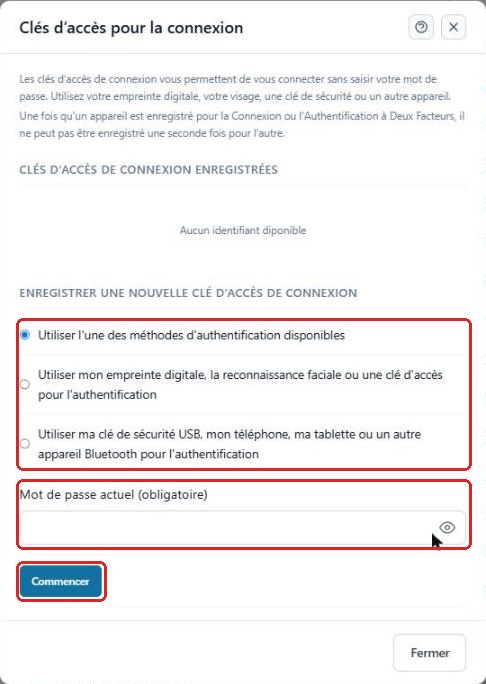
Register a new key
Choose the method: any of the available methods (the browser offers what it finds), fingerprint / facial recognition, or USB security key, phone or tablet.
Enter your current password and click “Begin”Commencer, then follow the instructions of your browser or system (fingerprint, PIN, touching the USB key…).
Check
The key then appears in the “Registered passkeys”Clés d'accès enregistrées list. You can register several (a computer and a phone, for example) so that you are not locked out if a device is lost.
3Need help?
Open a ticket from your DINAO client area, stating the guide number and the step where you stopped.