1Accessing the webmail
Go to webmail.dinao.com and sign in with the email address and password of your mailbox.
Do not confuse them with your DINAO client area credentials: these are two different accounts.
Good to knowThe screenshots show the webmail in French. The labels in brackets are those visible on the screenshots; in your webmail they appear in the language you have chosen (guide no. 1).
2Step by step
1
Open the settings
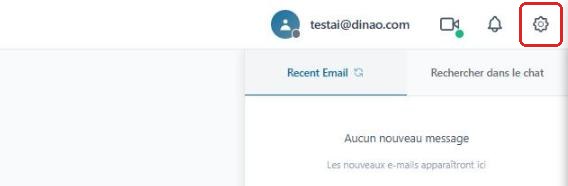
Once logged in, click the gearengrenage icon at the top right.
2
Open the “Personalize” section
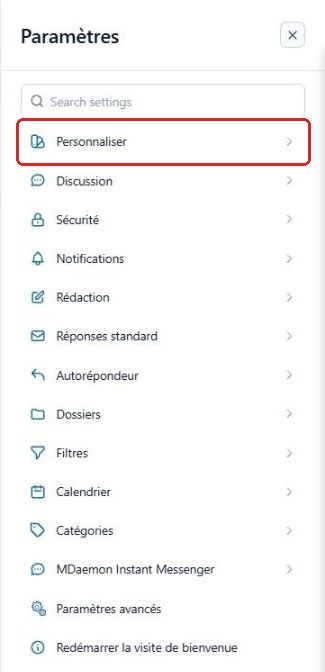
In the SettingsParamètres menu, select “Personalize”Personnaliser.
3
Choose the language, theme and style
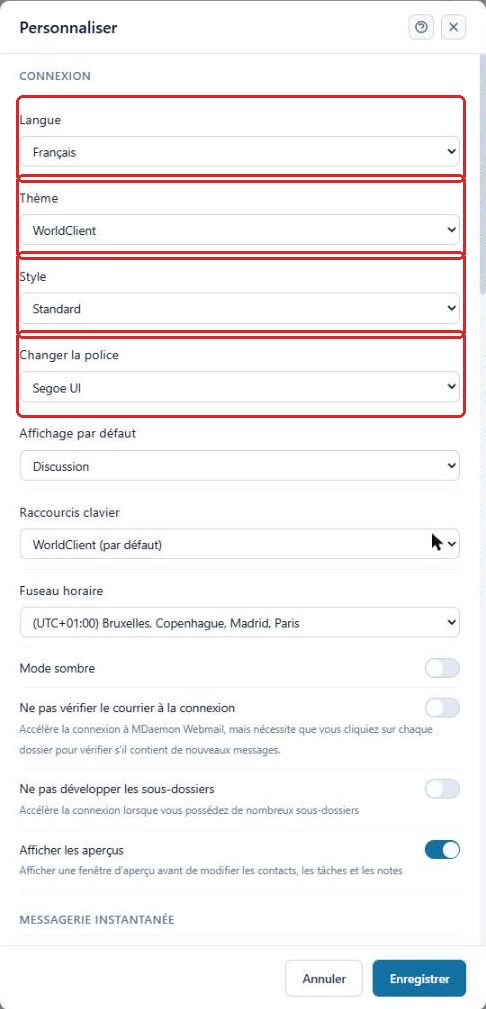
In the Sign InConnexion section, choose:
- LanguageLangue: the interface language (French by default);
- ThemeThème and Style: the overall appearance and main color;
- Change fontChanger la police: the font used in the interface.
4
Enable dark mode (optional)
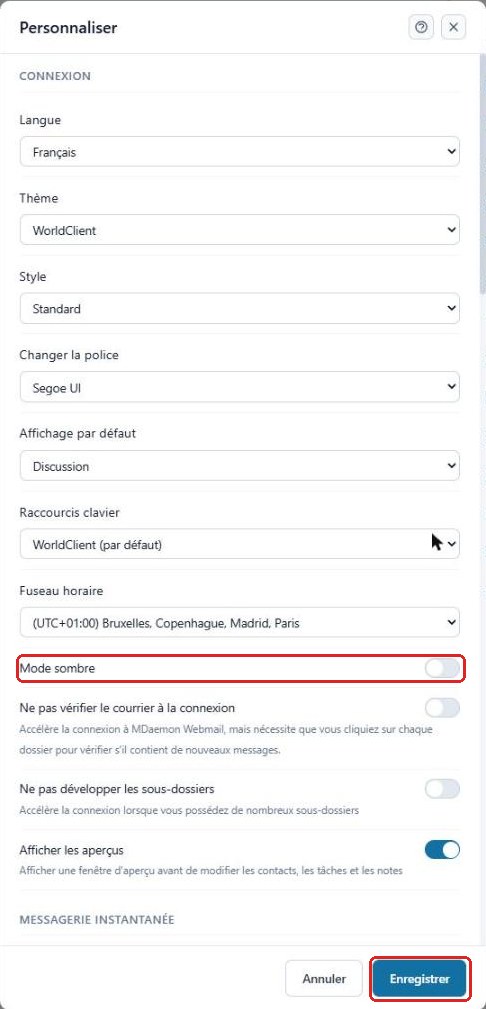
Turn on the Dark modeMode sombre switch to display the webmail on a dark background, then click “Save”Enregistrer.
3Good to know
The page reloads with the new appearance. To go back, repeat the procedure and choose the previous values.
4Need help?
Open a ticket from your DINAO client area, stating the guide number and the step where you stopped.