1Accessing the webmail
Go to webmail.dinao.com and sign in with the email address and password of your mailbox.
Do not confuse them with your DINAO client area credentials: these are two different accounts.
Good to knowThe screenshots show the webmail in French. The labels in brackets are those visible on the screenshots; in your webmail they appear in the language you have chosen (guide no. 1).
2Step by step
1
Open the settings
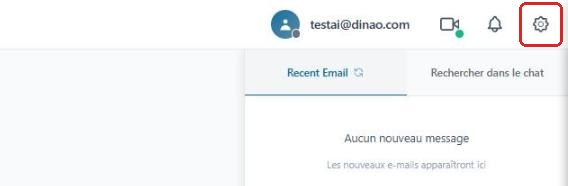
Once logged in, click the gearengrenage icon at the top right.
2
Open the “Personalize” section
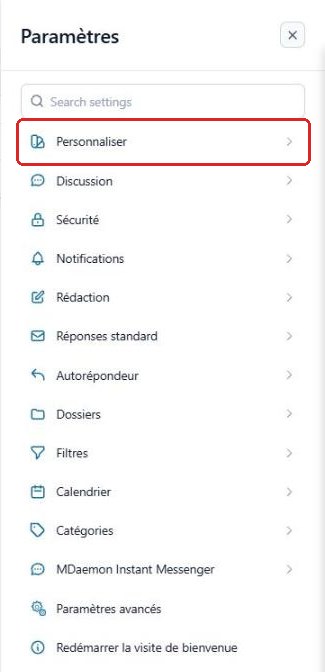
In the SettingsParamètres menu, select “Personalize”Personnaliser.
3
Choose the deletion mode
In the MailCourrier section, under Message deletionSuppression des messages:
- Move to TrashMettre à la Corbeille (recommended): the message is moved to “Deleted Items” and can still be recovered;
- IMAP deleteSuppression IMAP: the message is only flagged “Deleted” in its folder.
The following options let you hide deleted messagesmasquer les messages supprimés, mark them as readmarquer comme lus and empty the Trash on exitvider la Corbeille en quittant from the webmail.
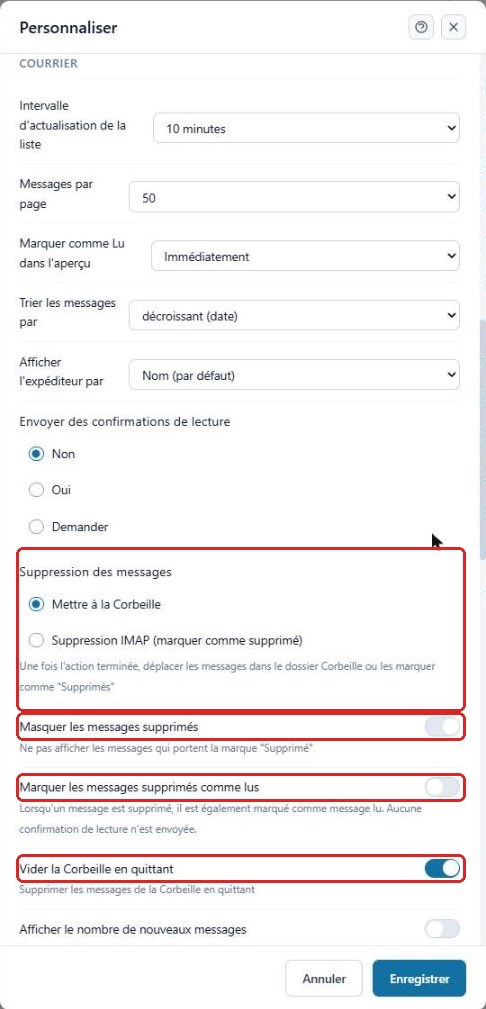
If “Empty Trash on exit” is enabled, the messages in the Trash are permanently erased each time you log out.
4
Save
Click “Save”Enregistrer at the bottom of the window to apply your changes.
3Need help?
Open a ticket from your DINAO client area, stating the guide number and the step where you stopped.