1Accessing the webmail
Go to webmail.dinao.com and sign in with the email address and password of your mailbox.
2Step by step
Open the settings
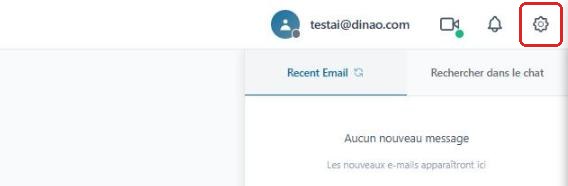
Once logged in, click the gearengrenage icon at the top right.
Open the “Personalize” section
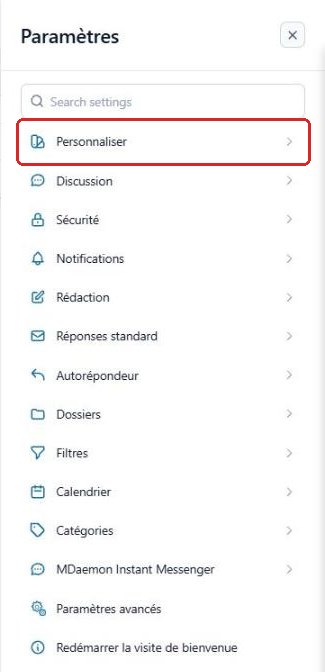
In the SettingsParamètres menu, select “Personalize”Personnaliser.
Read receipts
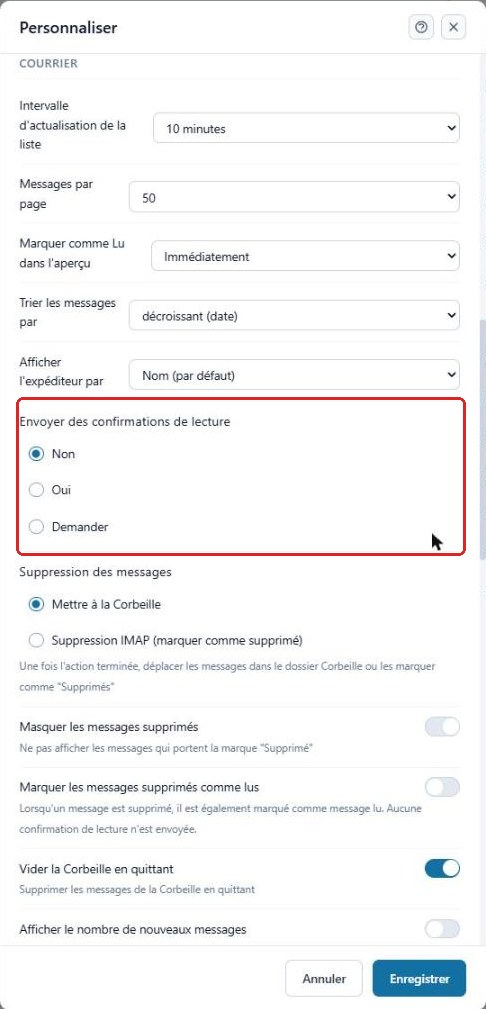
In the MailCourrier section, Send read confirmationsEnvoyer des confirmations de lecture: No (never), Yes (always) or Ask (the webmail asks you each time).
Preferred display format
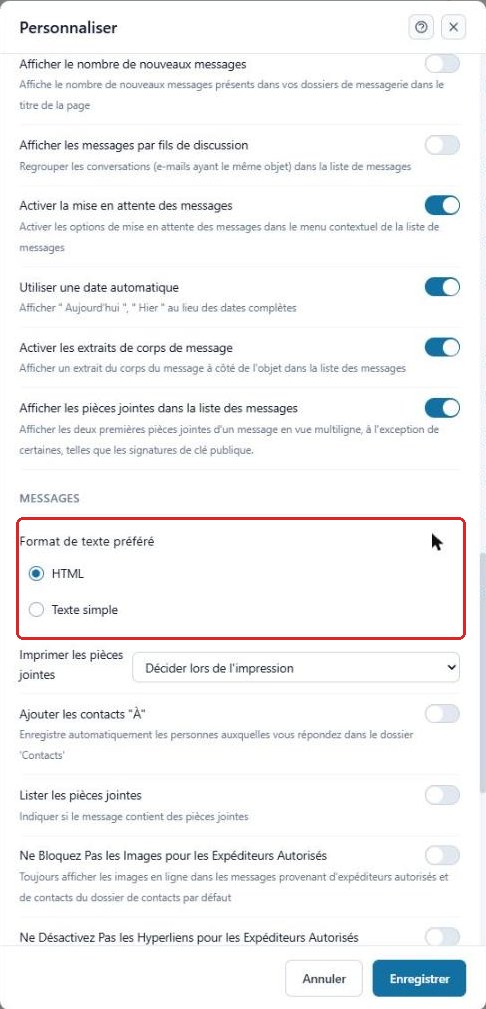
In the Messages section, Preferred text formatFormat de texte préféré: HTML (original formatting) or Plain text (safer, with no images or formatting).
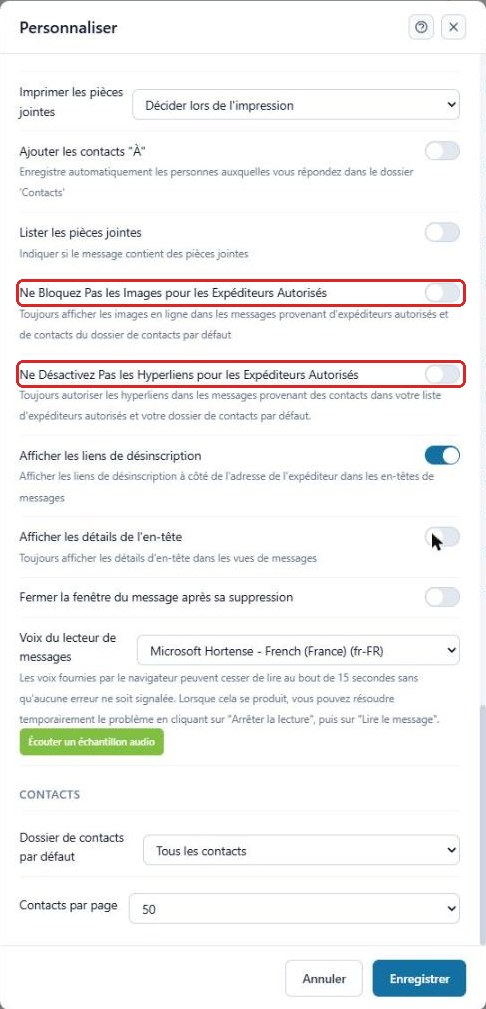
Images and links from trusted senders
For security reasons, remote images and links are blocked. The two options below allow them only for your contacts and allowed senders.
Save
Click “Save”Enregistrer at the bottom of the window to apply your changes.
3Need help?
Open a ticket from your DINAO client area, stating the guide number and the step where you stopped.