1Accessing the webmail
Go to webmail.dinao.com and sign in with the email address and password of your mailbox.
2Step by step
Open the settings
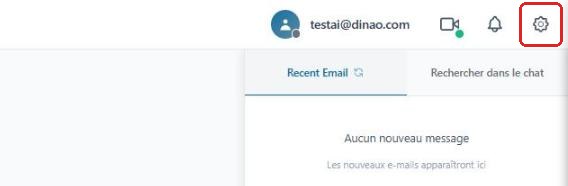
Once logged in, click the gearengrenage icon at the top right.
Open the “Filters” section
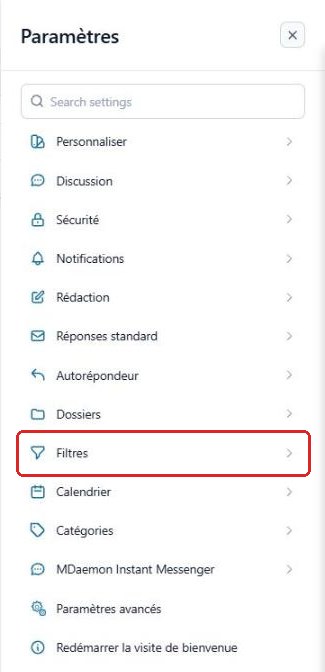
In the SettingsParamètres menu, select “Filters”Filtres.
Create a filter
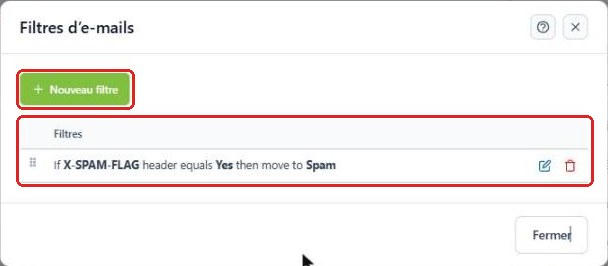
Click “New filter”Nouveau filtre. Existing filters are listed below.
Define the condition and the action
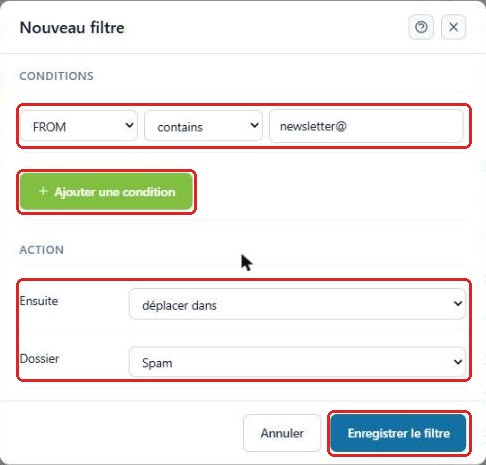
In Conditions, choose the field (FROM = sender, TO = recipient, SUBJECT = subject, message body…), the operator (contains, equals…) and the value. Add conditionAjouter une condition lets you combine several.
In Action, choose move to then the destination folder (or Delete), and click “Save filter”Enregistrer le filtre.
Order the filters
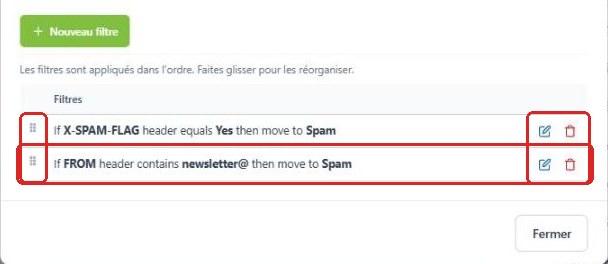
Filters are applied in the order of the list: drag them by the handle on the left to reorder them. The icons on the right let you edit or delete them.
3Good to know
4Need help?
Open a ticket from your DINAO client area, stating the guide number and the step where you stopped.