1Accessing the webmail
Go to webmail.dinao.com and sign in with the email address and password of your mailbox.
- Two-step authentication must be enabled (app, email or passkey).
- Your current password.
2Step by step
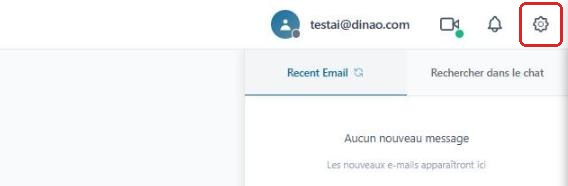
Open the settings
Once logged in, click the gearengrenage icon at the top right.
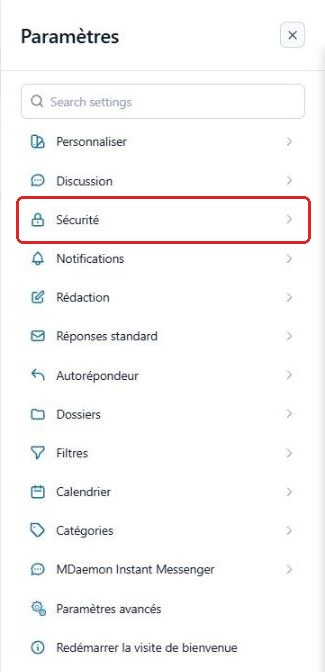
Open the “Security” section
In the SettingsParamètres menu, select “Security”Sécurité.
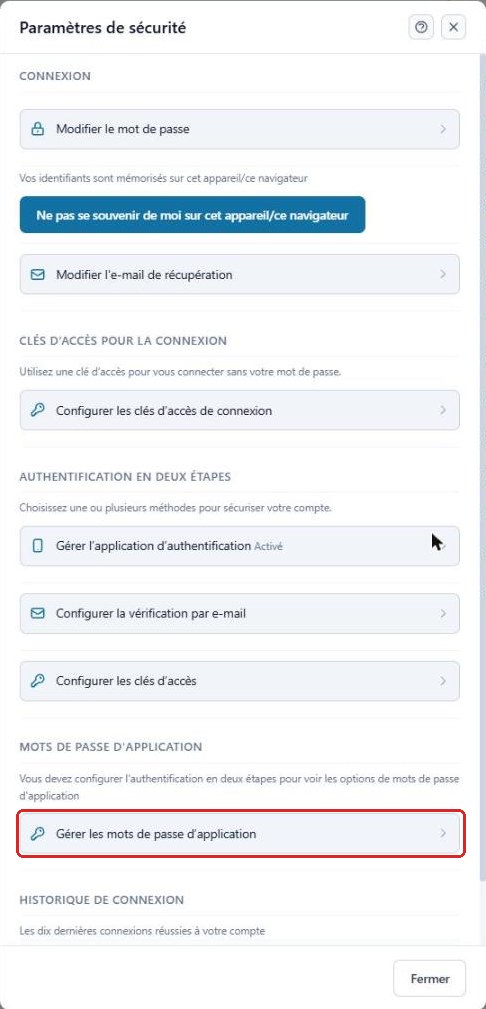
Open “Manage app passwords”
In the App passwordsMots de passe d'application section, click “Manage app passwords”Gérer les mots de passe d'application.
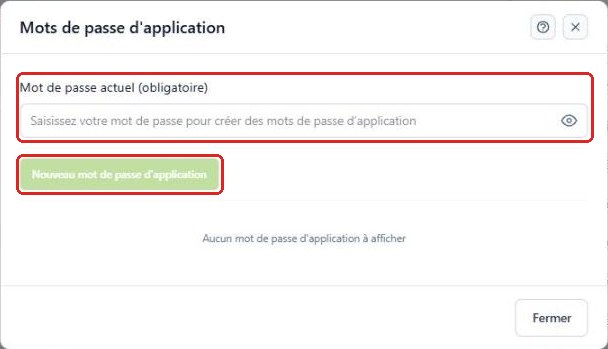
Create the password
Enter your current password, then click “New app password”Nouveau mot de passe d'application.
If you are asked for a name, choose a meaningful one (for example “Office Outlook” or “iPhone”). Copy the generated password and keep it for the next step.
Use it in your software
In Outlook, Thunderbird or on your smartphone, replace your usual password with this app password. Create a different password for each device: you will then be able to revoke just one of them if a device is lost or stolen.
3Good to know
4Need help?
Open a ticket from your DINAO client area, stating the guide number and the step where you stopped.