1Accessing the webmail
Go to webmail.dinao.com and sign in with the email address and password of your mailbox.
Do not confuse them with your DINAO client area credentials: these are two different accounts.
Good to knowThe screenshots show the webmail in French. The labels in brackets are those visible on the screenshots; in your webmail they appear in the language you have chosen (guide no. 1).
2Step by step
1
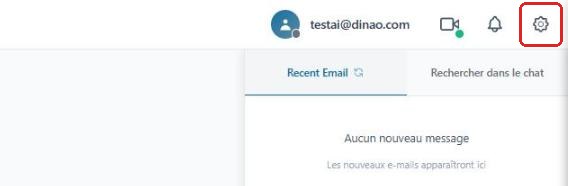
Open the settings
Once logged in, click the gearengrenage icon at the top right.
2
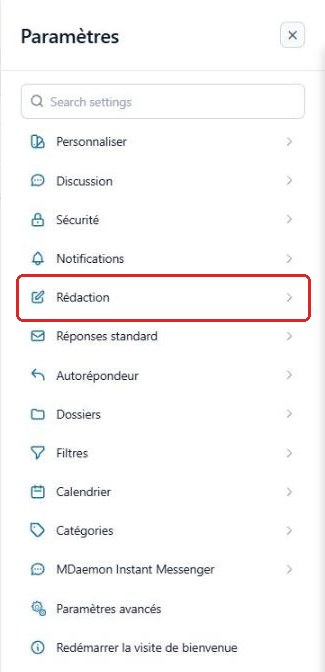
Open the “Compose” section
In the SettingsParamètres menu, select “Compose”Rédaction.
3
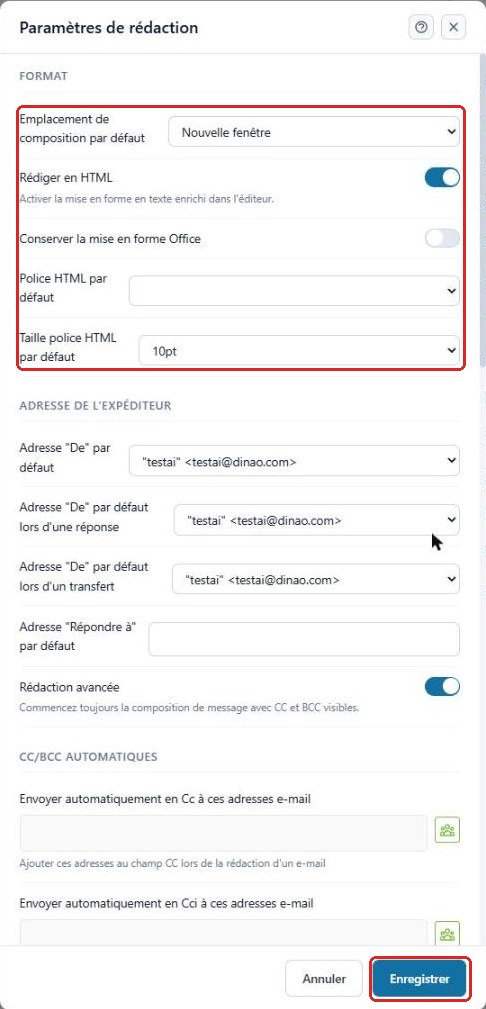
Set the “Format” section
- Default compose locationEmplacement de composition par défaut: new window, new tab or embedded window;
- Compose in HTMLRédiger en HTML: enables formatting (bold, colors, images…);
- Keep Office formattingConserver la mise en forme Office: useful when pasting from Word;
- Default HTML FontPolice and SizeTaille.
4
Save
Click “Save”Enregistrer at the bottom of the window to apply your changes.
3Need help?
Open a ticket from your DINAO client area, stating the guide number and the step where you stopped.