1Accessing the webmail
Go to webmail.dinao.com and sign in with the email address and password of your mailbox.
2Step by step
Open the settings
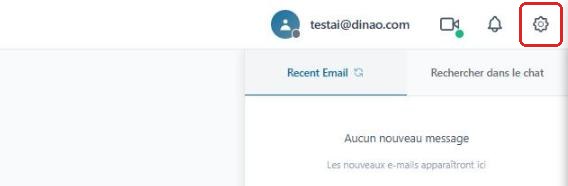
Once logged in, click the gearengrenage icon at the top right.
Open the advanced settings
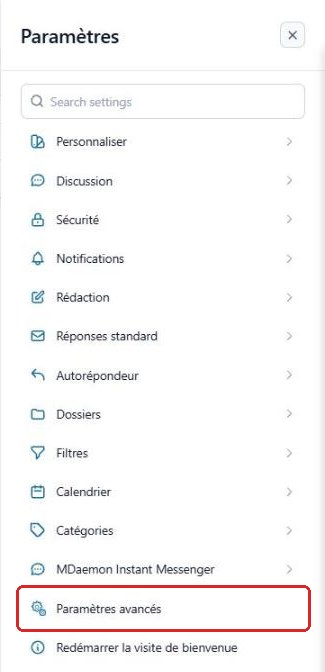
In the SettingsParamètres menu, click “Advanced Settings”Paramètres avancés.
A new “MDaemon Remote Administration”Administration de MDaemon tab opens in your browser: you are already logged in with your email account.
Open the “Shared Folders” tab
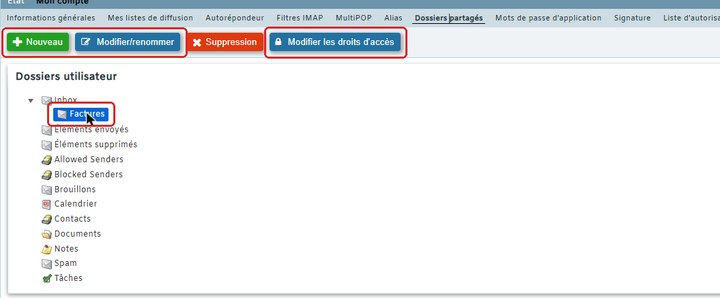
Click My AccountMon compte, then the “Shared Folders”Dossiers partagés tab.

Choose the folder
Select the folder to share, then click “Edit access rights”Modifier les droits d'accès. The other buttons let you create, rename or delete a folder.
Add a user and their rights
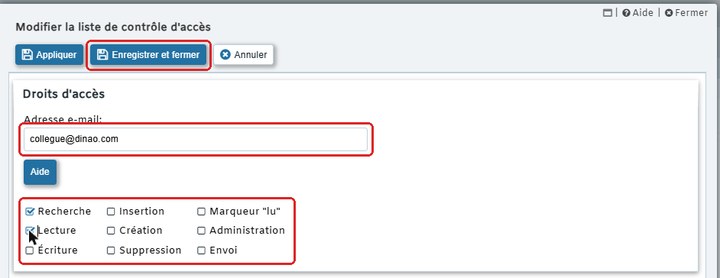
Click NewNouveau, enter your colleague's email address, check the rights to grant (Lookup and Read for simple viewing), then click “Save and close”Enregistrer et fermer.
3Need help?
Open a ticket from your DINAO client area, stating the guide number and the step where you stopped.