1Accessing the webmail
Go to webmail.dinao.com and sign in with the email address and password of your mailbox.
Do not confuse them with your DINAO client area credentials: these are two different accounts.
What you need
- Microsoft Outlook for Windows.
- An MDaemon Connector license activated on your account (ask DINAO support).
Good to knowThe screenshots show the webmail in French. The labels in brackets are those visible on the screenshots; in your webmail they appear in the language you have chosen (guide no. 1).
2Step by step
1
Open the download page
In the webmail, open the MDaemon Connector window. If it does not appear in your Settings menu, contact DINAO support: the option must be enabled on your account.
2
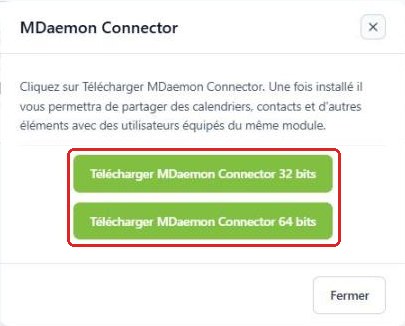
Download the right version
Choose the version that matches your Outlook (not Windows): 32-bit or 64-bit. In Outlook, File › Office Account › About Outlook shows the version.
3
Install
Close Outlook, run the downloaded file and follow the wizard. When Outlook restarts, enter your email address, your password and the server provided by DINAO.
3Need help?
Open a ticket from your DINAO client area, stating the guide number and the step where you stopped.