1Accessing the webmail
Go to webmail.dinao.com and sign in with the email address and password of your mailbox.
Do not confuse them with your DINAO client area credentials: these are two different accounts.
Good to knowThe screenshots show the webmail in French. The labels in brackets are those visible on the screenshots; in your webmail they appear in the language you have chosen (guide no. 1).
2Step by step
1
Open the settings
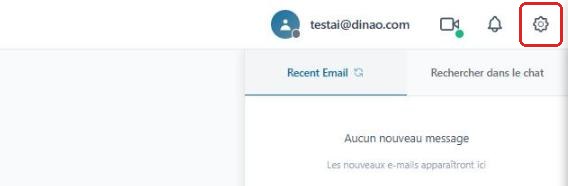
Once logged in, click the gearengrenage icon at the top right.
2
Open the “Folders” section
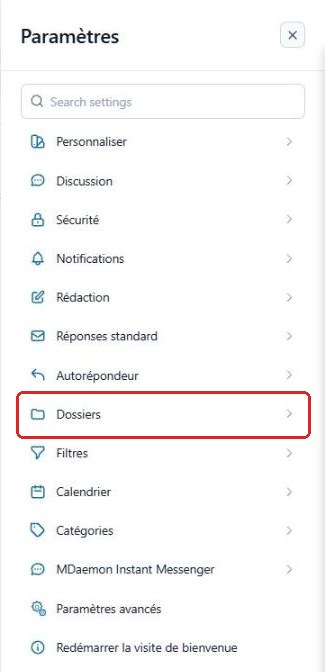
In the SettingsParamètres menu, select “Folders”Dossiers.
3
“Display” section
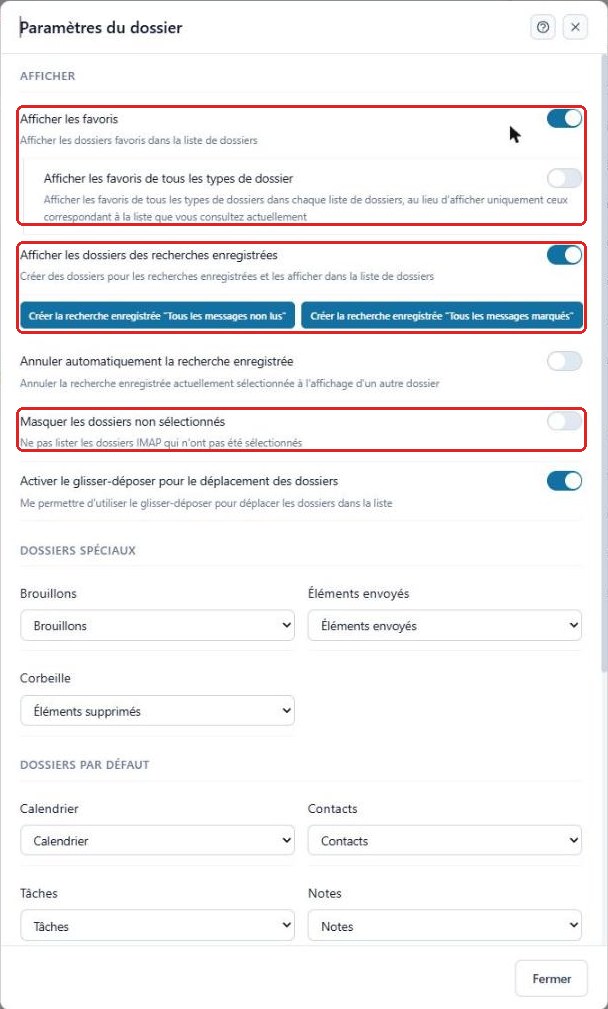
- Show favoritesAfficher les favoris at the top of the folder list;
- Show saved search foldersAfficher les dossiers des recherches enregistrées, and create the All unread messages and All flagged messages searches in one click;
- Hide unselected foldersMasquer les dossiers non sélectionnés.
4
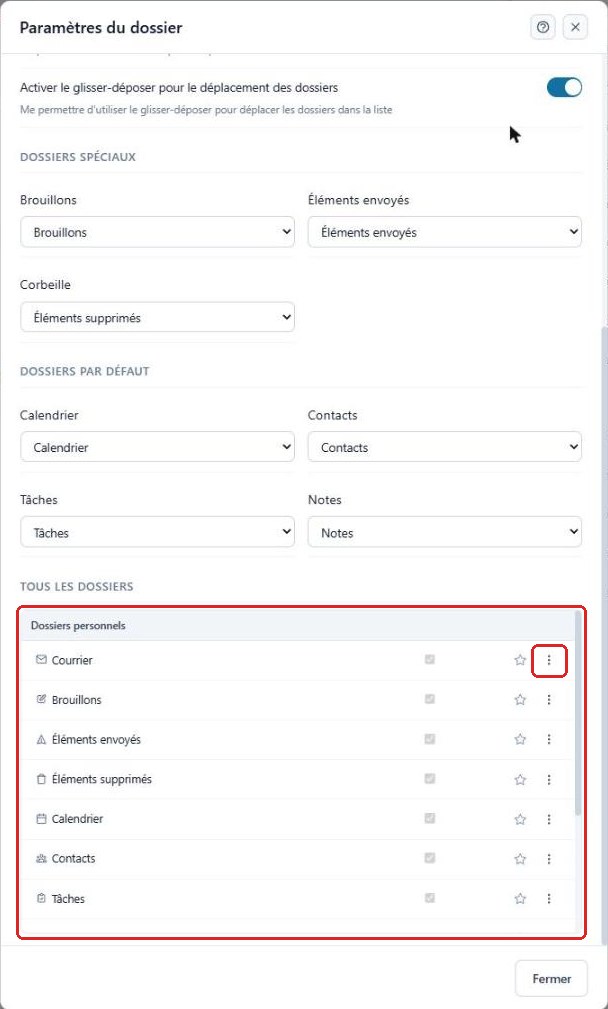
Special folders and default folders
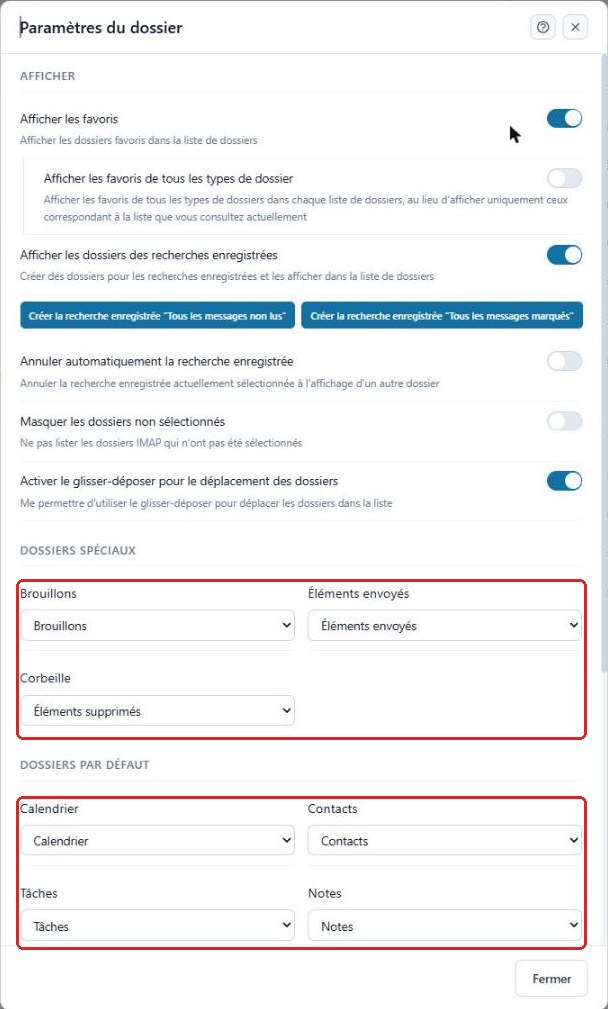
Specify which folders are used as DraftsBrouillons, Sent ItemsÉléments envoyés and TrashCorbeille, as well as the default folders for the calendar, contacts, tasks and notes.
5
List of all folders
At the bottom of the window, the checkbox lets you subscribeabonner to a folder (display it), the star adds it to your favoritesfavoris, and the ⋮ menu gives access to its options (notifications, sharing…).
3Good to know
Changes made in this window are applied immediately: simply click “Close”.
4Need help?
Open a ticket from your DINAO client area, stating the guide number and the step where you stopped.