1Accessing the webmail
Go to webmail.dinao.com and sign in with the email address and password of your mailbox.
2Step by step
Open the settings
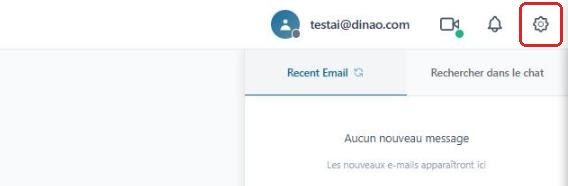
Once logged in, click the gearengrenage icon at the top right.
Open the “Notifications” section
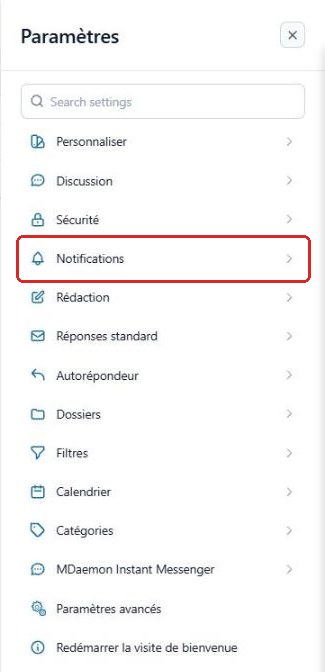
In the SettingsParamètres menu, select “Notifications”.
Allow desktop notifications
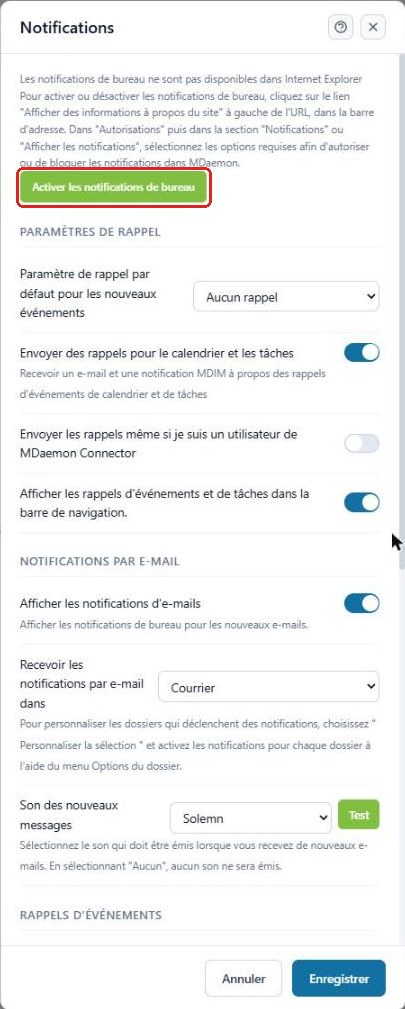
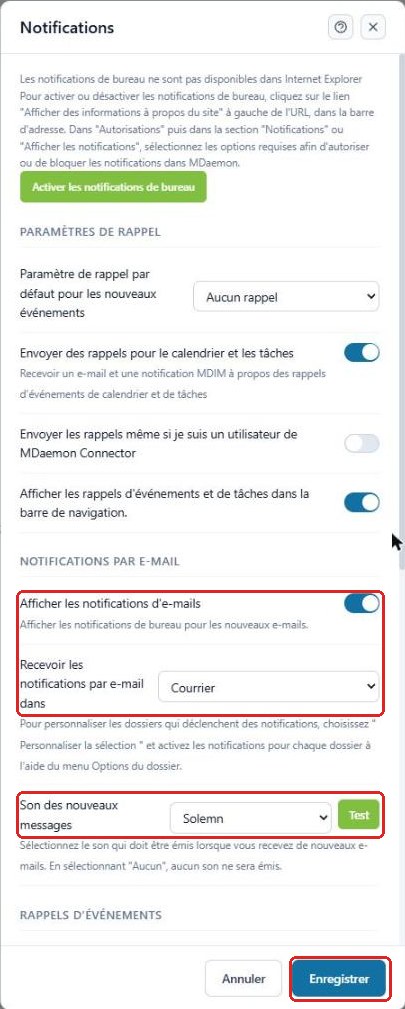
Click “Enable desktop notifications”Activer les notifications de bureau, then accept your browser's permission request.
Set up reminders
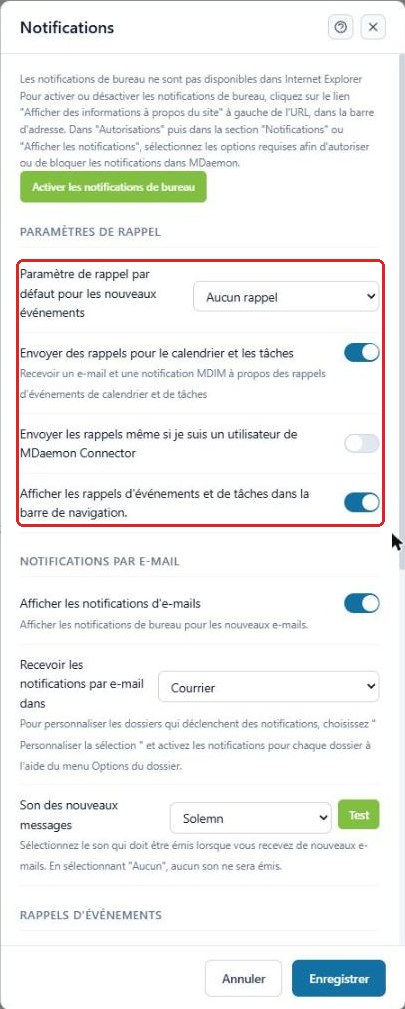
In Reminder settingsParamètres de rappel, choose the default reminder for new events and enable sending of calendar and task reminders (by email and in the navigation bar).
Email notifications and sound
In Email notificationsNotifications par e-mail, enable Show email notificationsAfficher les notifications d'e-mails, choose the folders concerned and the sound played when a message arrives (Test button to listen to it). Finally, click “Save”Enregistrer.
3Good to know
4Need help?
Open a ticket from your DINAO client area, stating the guide number and the step where you stopped.