1Accessing the webmail
Go to webmail.dinao.com and sign in with the email address and password of your mailbox.
Do not confuse them with your DINAO client area credentials: these are two different accounts.
What you need
- Your current password.
Good to knowThe screenshots show the webmail in French. The labels in brackets are those visible on the screenshots; in your webmail they appear in the language you have chosen (guide no. 1).
2Step by step
1
Open the settings
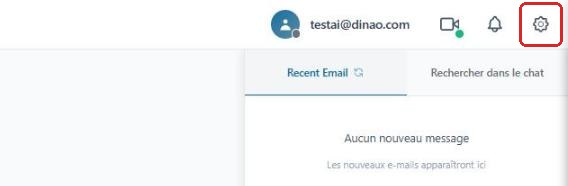
Once logged in, click the gearengrenage icon at the top right.
2
Open the “Security” section
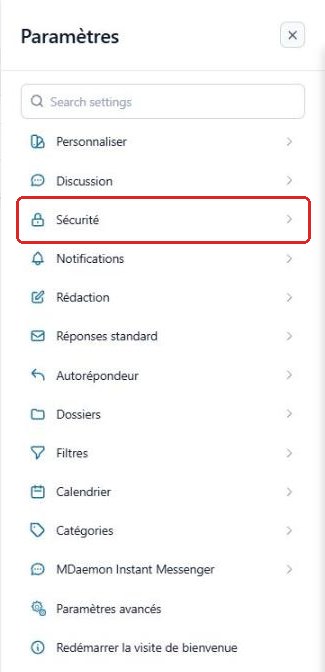
In the SettingsParamètres menu, select “Security”Sécurité.
3
Open “Change password”
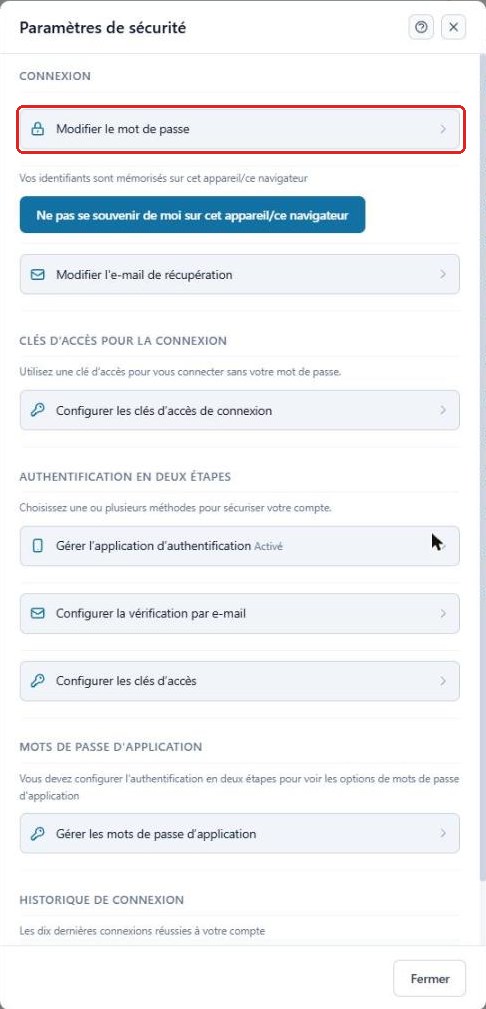
In the Sign InConnexion section, click “Change password”Modifier le mot de passe.
4
Enter the old and new password
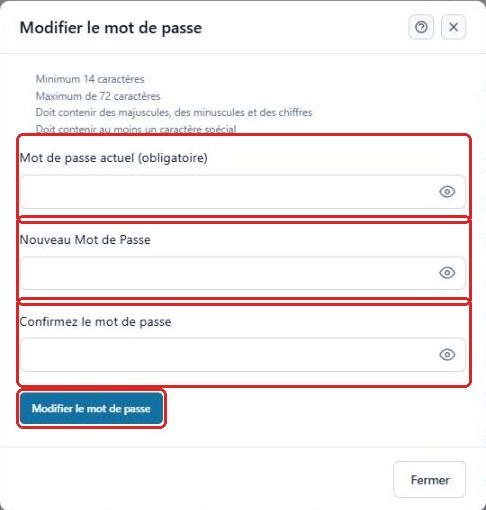
Enter your current passwordmot de passe actuel, then the new passwordnouveau mot de passe twice, and click “Change password”Modifier le mot de passe.
The new password must contain at least 14 characters (72 maximum), uppercase letters, lowercase letters, digits and at least one special character.
3Good to know
Remember to update the password in all the software and devices that access this address (Outlook, Thunderbird, smartphone, tablet…), otherwise they will no longer be able to retrieve your emails.
4Need help?
Open a ticket from your DINAO client area, stating the guide number and the step where you stopped.