1Accessing the webmail
Go to webmail.dinao.com and sign in with the email address and password of your mailbox.
2Step by step
Open the settings
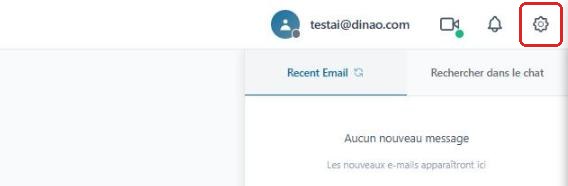
Once logged in, click the gearengrenage icon at the top right.
Open the “Compose” section
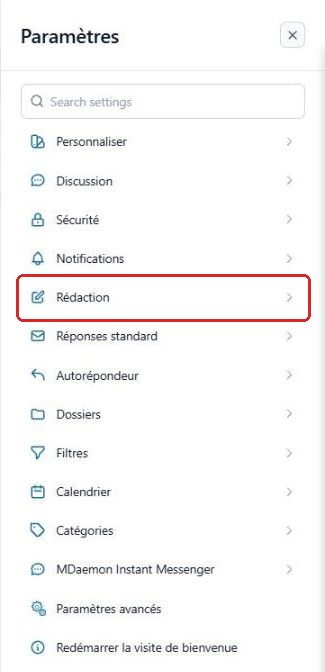
In the SettingsParamètres menu, select “Compose”Rédaction.
Create a new signature
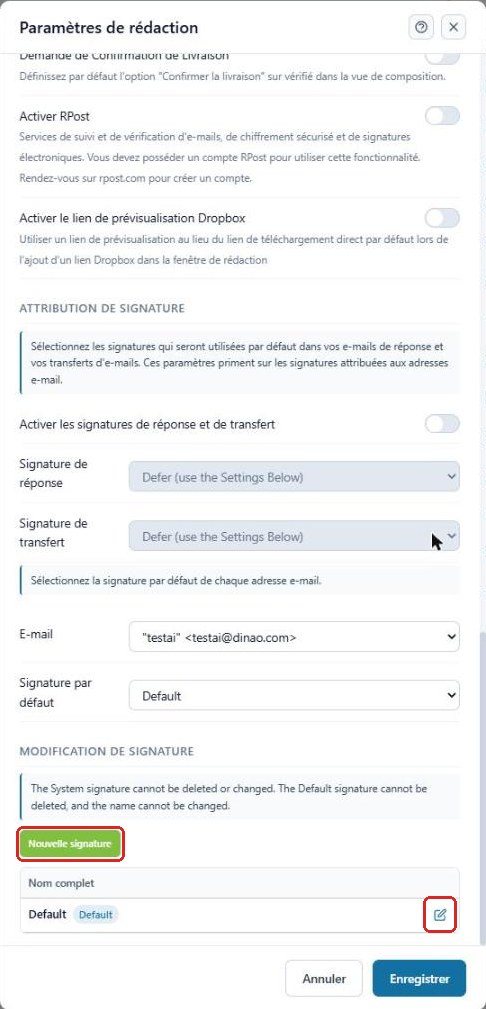
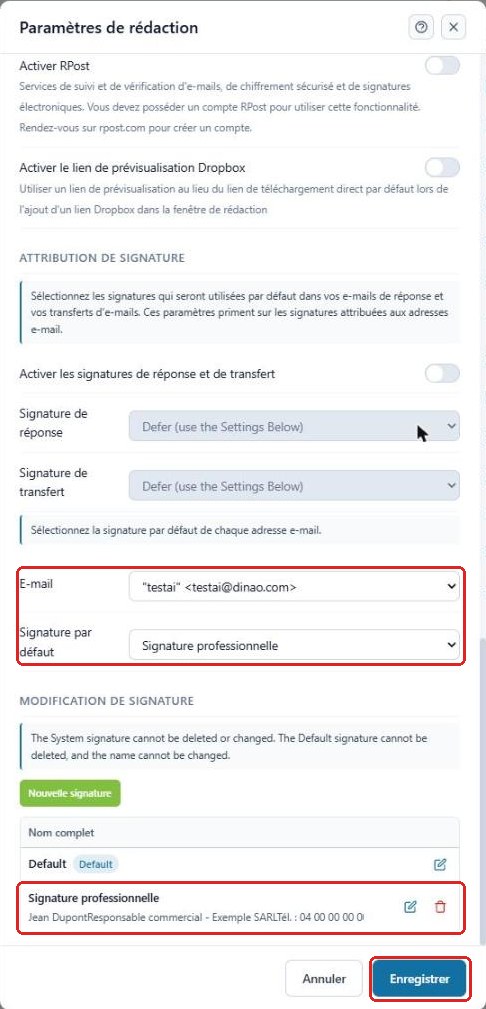
Scroll down the window to Signature editingModification de signature and click “New signature”Nouvelle signature. The pencil icon lets you edit an existing signature.
Write the signature
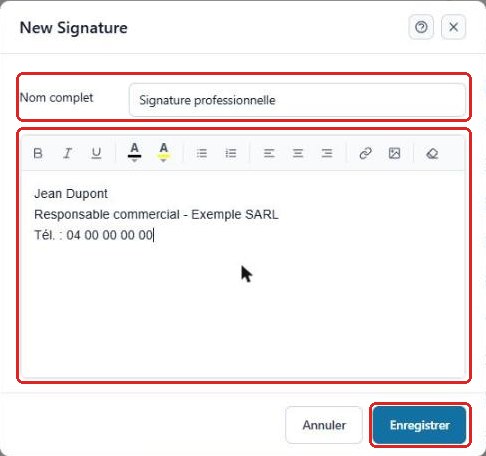
Give the signature a name, write it in the editor (formatting, links and images are possible), then click “Save”Enregistrer.
Assign it to your address
In Default signatureSignature par défaut, choose the signature you created for your email address, then click “Save”Enregistrer at the bottom of the window.
Reply and forward signatures (optional)
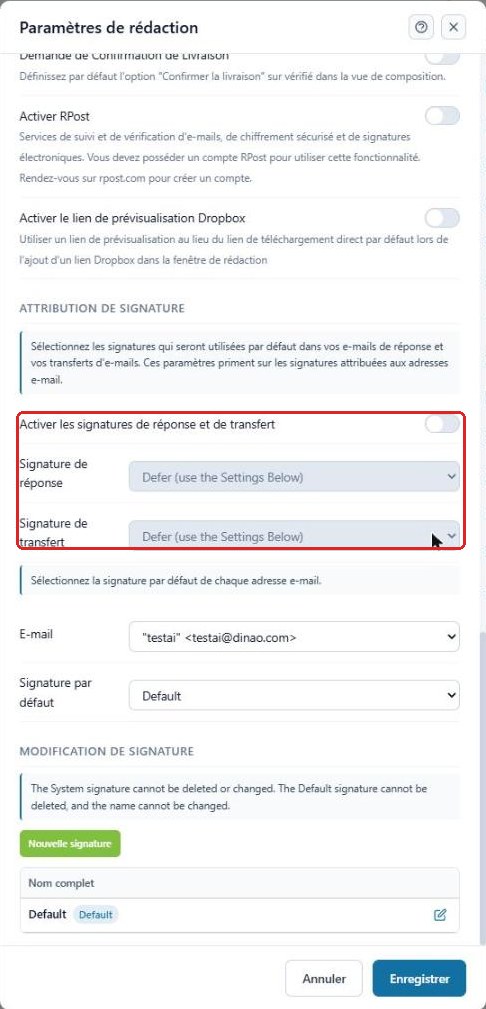
Turn on Enable reply and forward signaturesActiver les signatures de réponse et de transfert to use a different signature (a shorter one, for example) in your replies and forwards.
3Need help?
Open a ticket from your DINAO client area, stating the guide number and the step where you stopped.