1Accessing the webmail
Go to webmail.dinao.com and sign in with the email address and password of your mailbox.
Do not confuse them with your DINAO client area credentials: these are two different accounts.
Good to knowThe screenshots show the webmail in French. The labels in brackets are those visible on the screenshots; in your webmail they appear in the language you have chosen (guide no. 1).
2Step by step
1
Open your mailbox
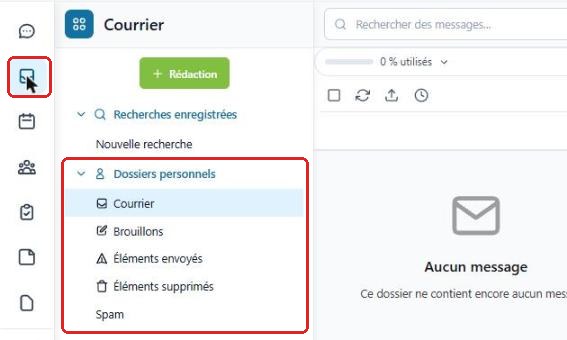
Click the envelopeenveloppe icon in the left-hand bar to display your mail folders.
2
Create a folder
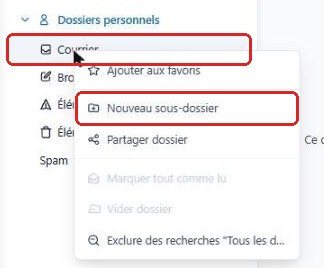
Right-clickclic droit the parent folder (for example “Mail”) and choose “New subfolder”Nouveau sous-dossier.
3
Name the folder
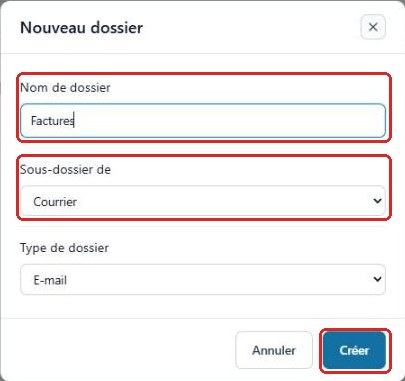
Enter the name, check the parent folder and the type (Email), then click “Create”Créer.
4
Rename, share or delete
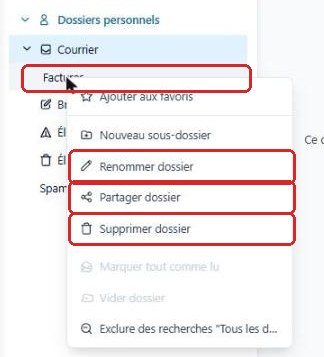
Right-clicking your folder offers Rename folderRenommer dossier, Share folderPartager dossier and Delete folderSupprimer dossier.
Deleting a folder also deletes all the messages it contains.
5
Share with a colleague
In the sharing window, enter the address of a user in your domain, choose the access level (Read, etc.), add them, then click “Save”Enregistrer.
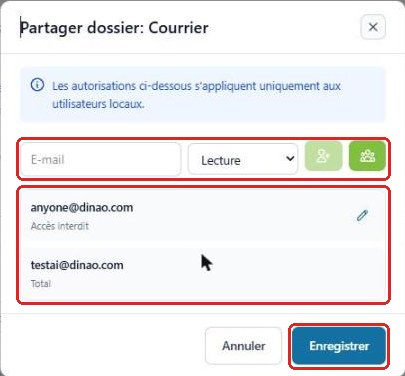
Sharing only works with users hosted on the same DINAO mail server.
3Need help?
Open a ticket from your DINAO client area, stating the guide number and the step where you stopped.