1Accessing the webmail
Go to webmail.dinao.com and sign in with the email address and password of your mailbox.
Do not confuse them with your DINAO client area credentials: these are two different accounts.
Good to knowThe screenshots show the webmail in French. The labels in brackets are those visible on the screenshots; in your webmail they appear in the language you have chosen (guide no. 1).
2Step by step
1
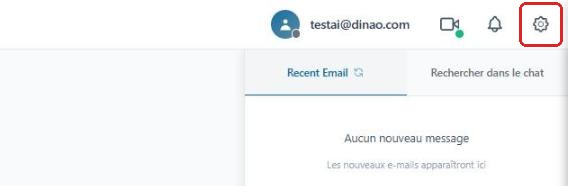
Open the settings
Once logged in, click the gearengrenage icon at the top right.
2
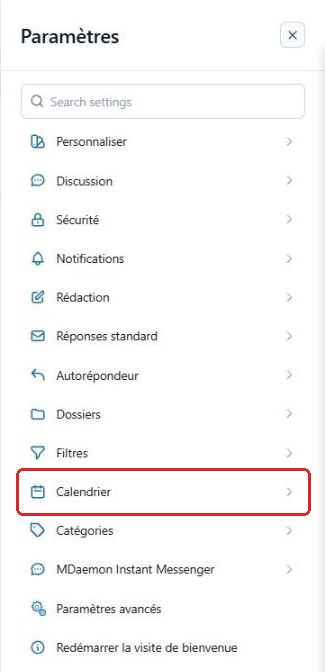
Open the “Calendar” section
In the SettingsParamètres menu, select “Calendar”Calendrier.
3
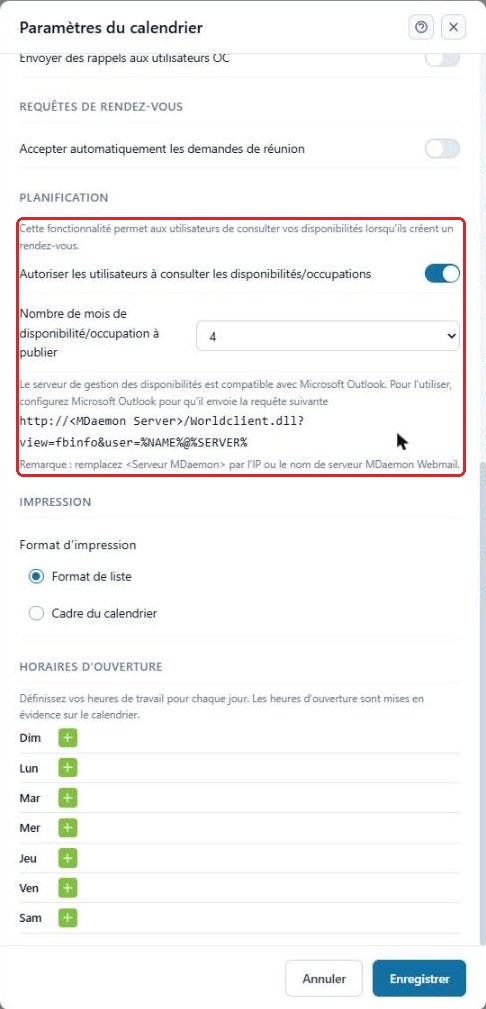
“Scheduling” section
Enable Allow users to view free/busy informationAutoriser les utilisateurs à consulter les disponibilités/occupations and choose the number of months published. The address shown also lets Microsoft Outlook read your availability.
4
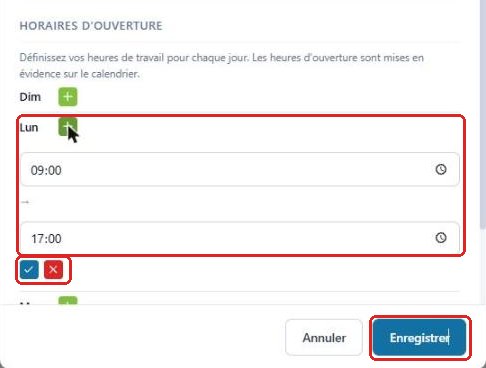
Working hours
In Working hoursHoraires d'ouverture, click + next to a day, enter the start and end times, confirm with the blue check mark, then click “Save”Enregistrer.
3Need help?
Open a ticket from your DINAO client area, stating the guide number and the step where you stopped.